
How to Install Zen IPTV Player on Firestick
The definitive guide to setting up Zen IPTV on Amazon Fire TV devices.
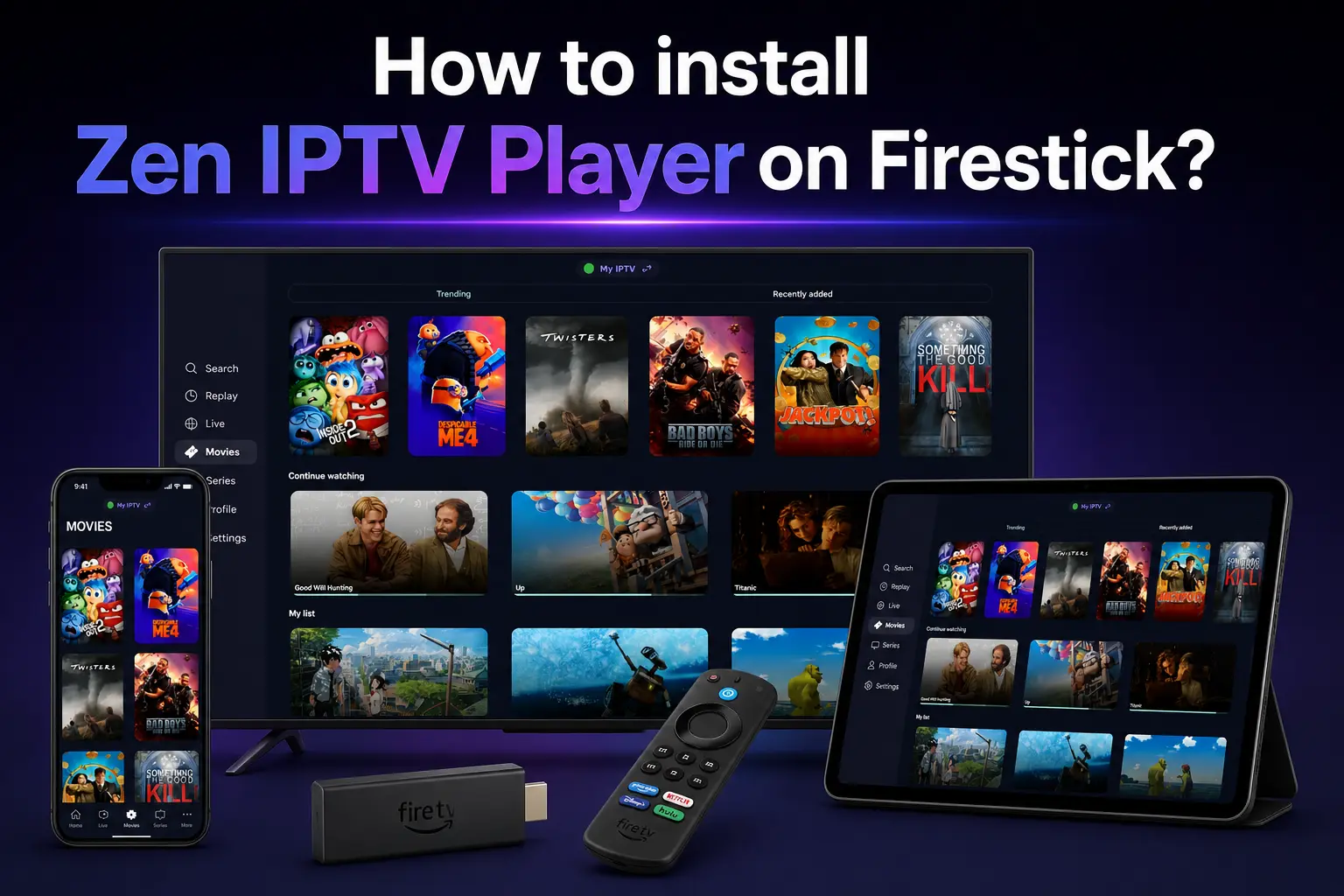
Amazon Firestick is the world's most popular streaming device, and for a good reason. It's powerful, affordable, and incredibly flexible. By installing Zen IPTV Player, you can turn your Firestick into a professional-grade streaming hub.
Since Zen IPTV Player is a high-performance app, it requires "sideloading" to be installed on Firestick devices. Don't worry—this is a perfectly safe and standard procedure. Follow this guide precisely to get up and running in minutes.
Important Requirement
Zen IPTV Player is an empty shell. You need an active subscription to watch live channels. Get a 24-hour Free Trial from Zen IPTV today.
Step 1: Prepare Your Firestick
Before we can install any apps, we need to ensure your Firestick is connected to the internet and updated to the latest software version.
- Go to the Home Screen of your Firestick.
- Navigate to Settings (the gear icon on the far right).
- Select My Fire TV and click on About.
- Check for updates to ensure you have the latest features.
Step 2: Install the Downloader App
Since we are installing the app via APK, we need a tool called Downloader. This is an official app available in the Amazon App Store.
- Go back to the Home Screen.
- Select Find or Search.
- Type "Downloader" and select it from the results.
- Click Download or Get to install the app.
Step 3: Enable Unknown Sources
This is the most critical step. By default, Firestick blocks apps from outside the Amazon Store.
- Go back to Settings.
- Select My Fire TV.
- Choose Developer Options.
Note: If you don't see Developer Options, go to About and click on Fire TV Stick seven times until you see "You are now a developer."
- Turn on Install Unknown Apps and ensure it is enabled for the Downloader app.
Step 4: Download & Install Zen IPTV Player
Now that the device is ready, let's download the app.
- Open the Downloader app you installed in Step 2.
- In the URL field, enter the official direct link:
- Click Go. The file will start downloading.
- Once finished, click Install.
- After installation, click Done. You can now delete the APK file to save space on your Firestick.
https://zeniptv.app/releases/zenplayer.apkStep 5: Setup & Playlist Activation
Open the Zen IPTV Player from your apps list. You will see your MAC Address and Device ID.
Log in with your Xtream Codes (Username, Password, URL) or upload your M3U Link.
Wait for the channels to load. Zen IPTV's optimized engine ensures this happens in seconds.
Enjoy 4K streaming with zero lag!
FAQ: Zen IPTV on Firestick
Is Zen IPTV safe for my Firestick?
Yes, Zen IPTV is a professional media player. As long as you download it from our official link, it is completely safe and secure.
Can I use Zen IPTV on Firestick Lite?
Absolutely. Zen IPTV Player is optimized to run smoothly on all versions of Firestick, including the Lite, 4K, and 4K Max models.
Why is the app not installing?
Most installation issues are caused by not enabling "Unknown Sources" or having insufficient storage space. Ensure you have at least 100MB of free space on your device.
Ready for the Ultimate TV Experience?
Don't settle for buffering and low-quality streams. Pair your Zen IPTV Player with our premium subscription for the best 4K content worldwide.